My Network
I recently upgraded my network thanks to a Black Friday sale at UniFi and I picked up a Dream Router 7. Previously, I was using a TP-Link Deco, which was fine, but I really wanted more control over my network, despite not knowing much about networking.
Setting up the Dream Router 7 was pretty straight forward. In fact, if you don't want to get too advanced, it pretty much works right out of the box with a quick set up process using their app. However, I knew I'd want more than an out-of-the-box experience. I knew that I would want to have separate networks for my main devices internet of things devices, such as humidifiers, light bulbs, cameras, etc. Before I even received the router, I did a lot of research on how it needed to be set up. The biggest contributor was this excellent video from Ethernet Blueprint. It really did walk me through everything I needed (and didn't) with setting up my new network.
My network topology is fairly simple. I have the cable modem running to the Dream Router. Also plugged into the Dream Router is an unmanaged switch, which has a mini PC and a Mac Mini plugged into it, a Raspberry Pi running Pi Hole and a Hue Home Bridge. The process took about an hour to create the networks and update all my devices to use the new wifi SSIDs. It wasn't all smooth sailing though. I could not access any web site on my Mac Mini or my mini PC. After a bit of troubleshooting, and a good night's sleep, I woke up feeling refreshed with the answer coming to me out of nowhere. My Pi Hole.
One of the last things I did was set up Pi Hole to block ads on my network. I had Pi Hole running previously, but while I was upgrading my network, I decided to upgrade the Pi Hole to Debian Trixie as well. So what was the problem here? Well, one of the services I also have running on my devices is Tailscale, which is a VPN that allows your devices to appear on the same network and talk to each other even when they aren't actually on the same network. I previously set up Tailscale to use the Raspberry Pi and Pi Hole as the DNS server using this tutorial. This allowed me to block ads on my phone, even when I'm on another network or on cellular. The problem was, Tailscale was still configured to use the Pi Hole's old IP address for the DNS server and it no longer existed. The fix was simple, I just needed to use Tailscales nameservers until I had the Pi Hole back up and running, then I could update Tailscale to use the new IP address.
Once the Pi Hole was set up, I needed to update the DNS on my network on the Dream Router to point to the Pi Hole as well. That was as simple as unchecking Auto for DNS and then typing in the IP of the Pi Hole.
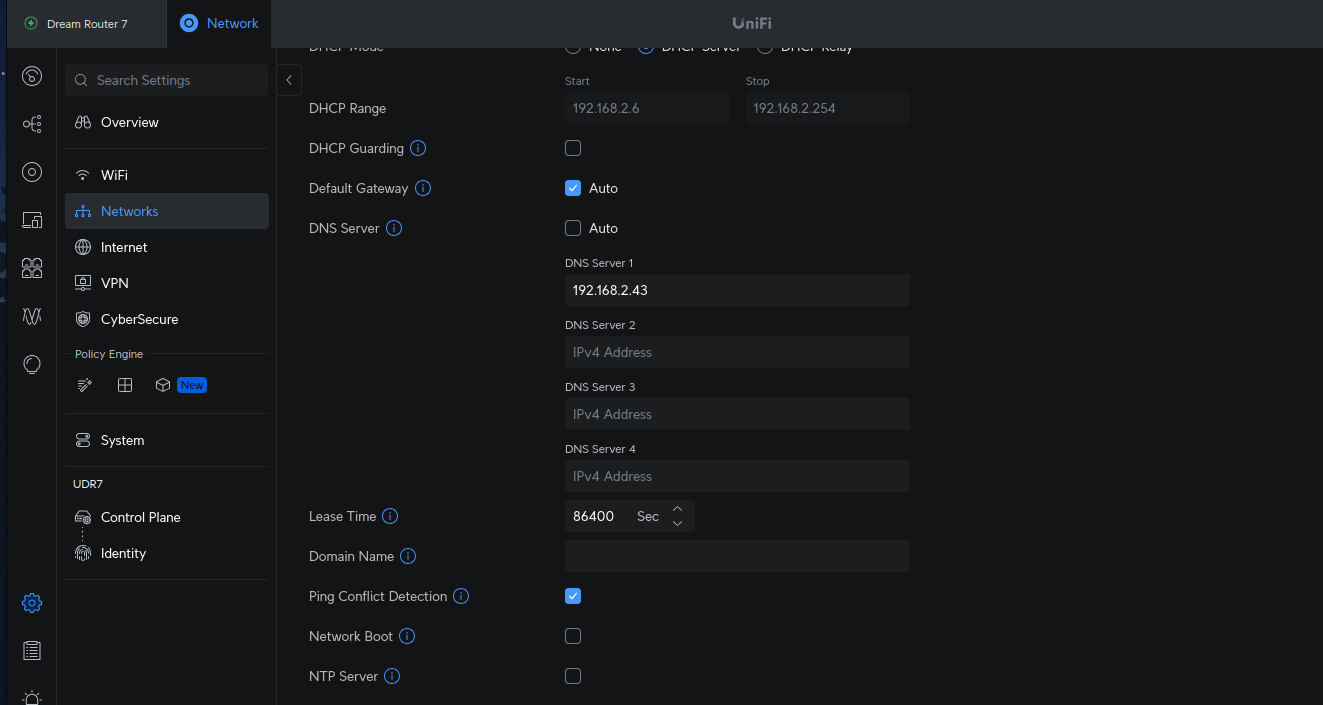
Once that was done, my devices started using the Pi Hole for the DNS server and ads were being blocked on my network once again. However, there was still one more annoyance. My Pi Hole is not my DHCP server. For now, I'm keeping that functionality on the Dream Router. What that means is all my devices in the Pi Hole interface would just show the IP addresses of the devices, instead of their friendly names. Luckily, with Conditional Formatting in the Pi Hole settings, you can have the Pi Hole talk to the DHCP server on the Dream Router to get the device names.
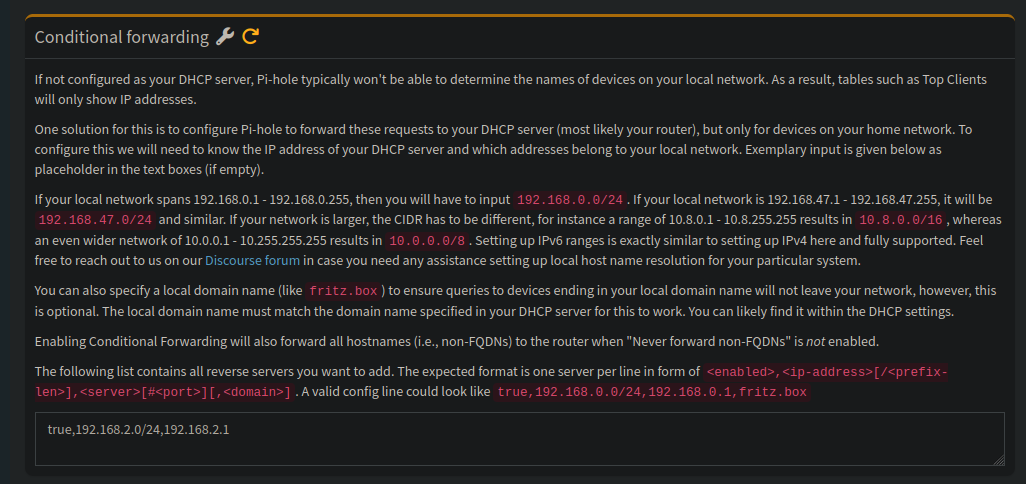
Once that was set, all my devices started showing up in Pi Hole as their device name instead of the IP address.
Now everything is running smoothly. I'm getting fast wifi 7 speeds on my iPhone, wifi 6 and 5 on other devices. My IoT devices are now on their own dedicated network, and I have much more insight as to what is actually going on with my network traffic.
 Welcome to my Home Lab blog. Follow me as I experiment with self hosting, open source technology, and general tech and gadget fun. Some of the things I’ll talk about on this blog in the coming weeks are: